
Best Window Managers for Mac in a Tiled World
This list covers three window managers for Mac: Windowly, TileBox and GridPilot. We compare tiling modes, shortcuts, multi display support and price. Windowly suits shortcut fans, TileBox suits mouse users and GridPilot suits large monitors.

Quick viewCollapseExpand
- Windowly: Best for shortcuts.
- TileBox: Best with a mouse.
- GridPilot: Best for large displays.
A window manager helps you snap windows into place instead of dragging edges. If you use a large display, it can save minutes every day. This list compares three tools.
What to look for
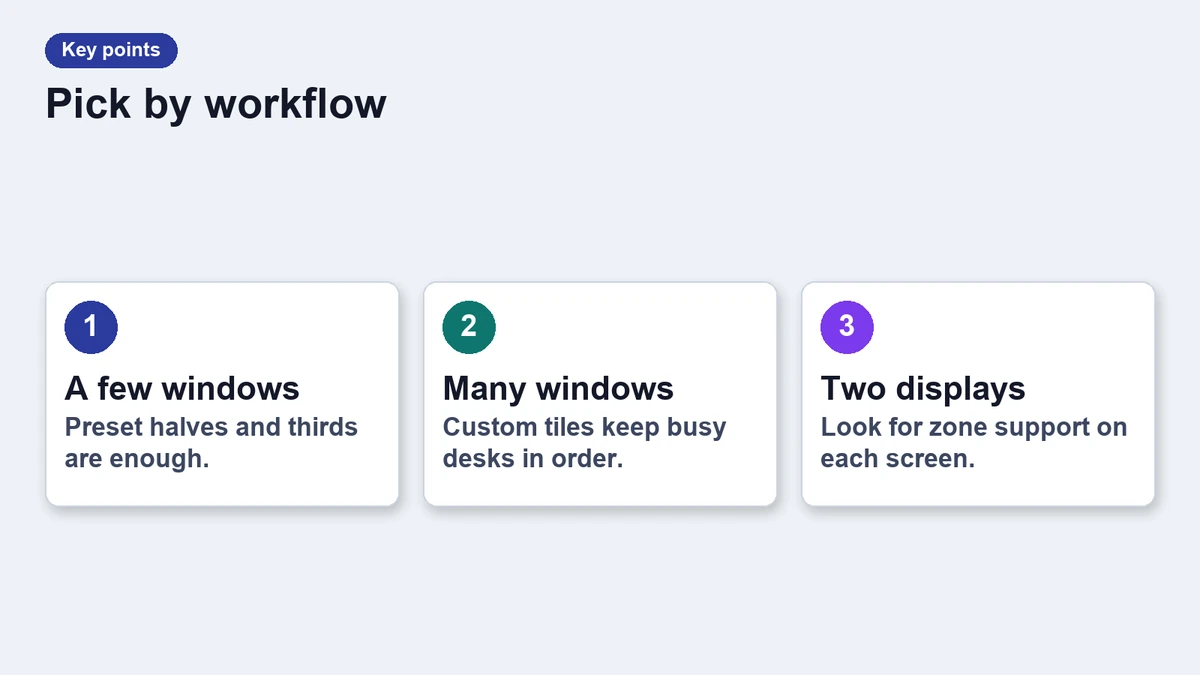
- Tiling modes: halves, thirds and custom grids.
- Shortcuts you can change.
- Support for more than one display.
- Price and trial length.
Window managers compared
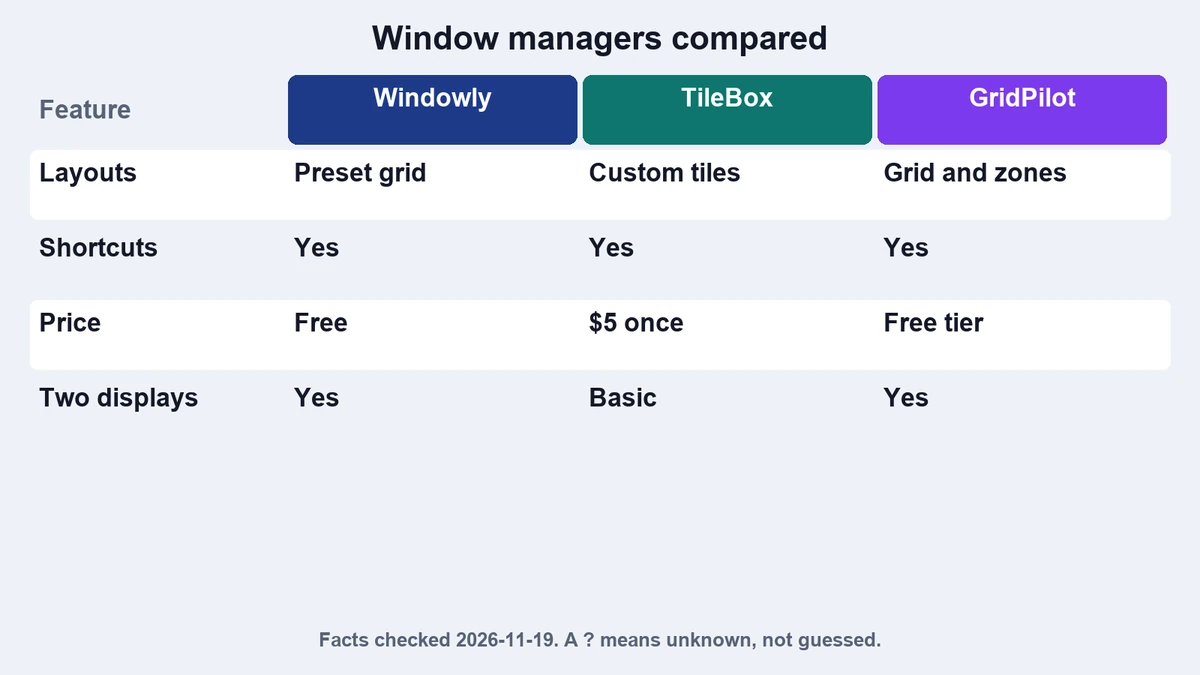
| App | Tiling | Shortcuts | Displays | Price |
|---|---|---|---|---|
| Windowly | Halves, thirds, grid | Fully custom | Up to 4 | $12 once |
| TileBox | Drag to snap zones | Basic | Up to 2 | Free |
| GridPilot | Custom grids | Custom | Up to 6 | $20 once |
Windowly: made for shortcuts
Windowly lets you map any layout to a key combination. After a week you can arrange a screen without using the mouse. It is light on memory and starts quickly.
TileBox: made for the mouse
TileBox shows zones when you drag a window near an edge. It is the easiest to learn, and the free price helps. The shortcut set is small.
GridPilot: made for large screens
GridPilot supports custom grids and many displays. It suits people with an ultrawide monitor or a desk with several screens.
How to choose
Think about how you work. If you prefer the keyboard, pick Windowly. If you move windows with the mouse, try TileBox first. Big setups should look at GridPilot. You can also set up hot corners as described in our hot corners guide.
Setting up your first layout
Start with two layouts: one for focus with a single large window, and one for reference with two side by side. Assign each to a shortcut you can remember. Add a third layout only when you find yourself repeating the same arrangement.
If you use several displays, give each display a preset. A fixed place for chat, mail and notes means you stop searching for windows and start working.
A final tip: try each tool for a week before you pay. Window managers are personal, and a layout that feels natural to one person can feel awkward to another. Most vendors offer a free trial for that reason.
Frequently asked questions
Do I need a window manager?
Not always. The system has basic snapping, but a manager adds layouts and shortcuts.
Will it slow my Mac?
Good managers use little memory and run in the background.
Can I use one with several displays?
Yes, if the tool supports your display count.